
Add Private Nodes
Deploy private nodes inside your own infrastructure to monitor applications that are not available to the public internet.
APIContext has remote nodes at locations worldwide, but these are only suitable for accessing publicly available services. To use the platform with services that are not reachable from the public internet, you can deploy private nodes in your own infrastructure. Private nodes only require outward access to the internet, no inbound routing is needed.
All node types (API, Browser, MCP) are deployed in the same way via Docker, with only minor configuration differences.
Create Nodes
To have a node generated for you, make a request via our support channel for private nodes to be created. For each node we need to know:
- The type of node (API, Browser or MCP)
- A human-readable Display Name
- (Optional) The continent, country and city of deployment. We will infer these by IP-address geolocation if not provided.
- What hardware you will install the node on. Note that Docker images are built for the AMD64 (x86-64) platform only at present. We have experimental support for ARM64 (e.g. AWS Graviton, Apple Silicon) so please let us know if this is of interest.
For each node requested, we will send you a zip file containing everything needed to deploy your node:
- A
docker-compose.ymlfile / - An
.envfile containing your node’s specific configuration. Note that this data is private to your node and must not be reused. - A `google-application-credentials.json file which gives your node permission to upload data to APIContext storage buckets in Google Cloud
Deploying in Docker Compose
- Extract the zip file contents to an empty directory
- Run
docker compose up
Other Deployment Options
The docker container can be run in any container environment such as Google Cloud Run, AWS Elastic Container Service or Azure Application Containers, provided that the settings in .env are supplied as environment variables at runtime, and the google-application-credentials.json file is mapped to /app/google-application-credentials.json in the container filesystem.
Using Your Private Nodes
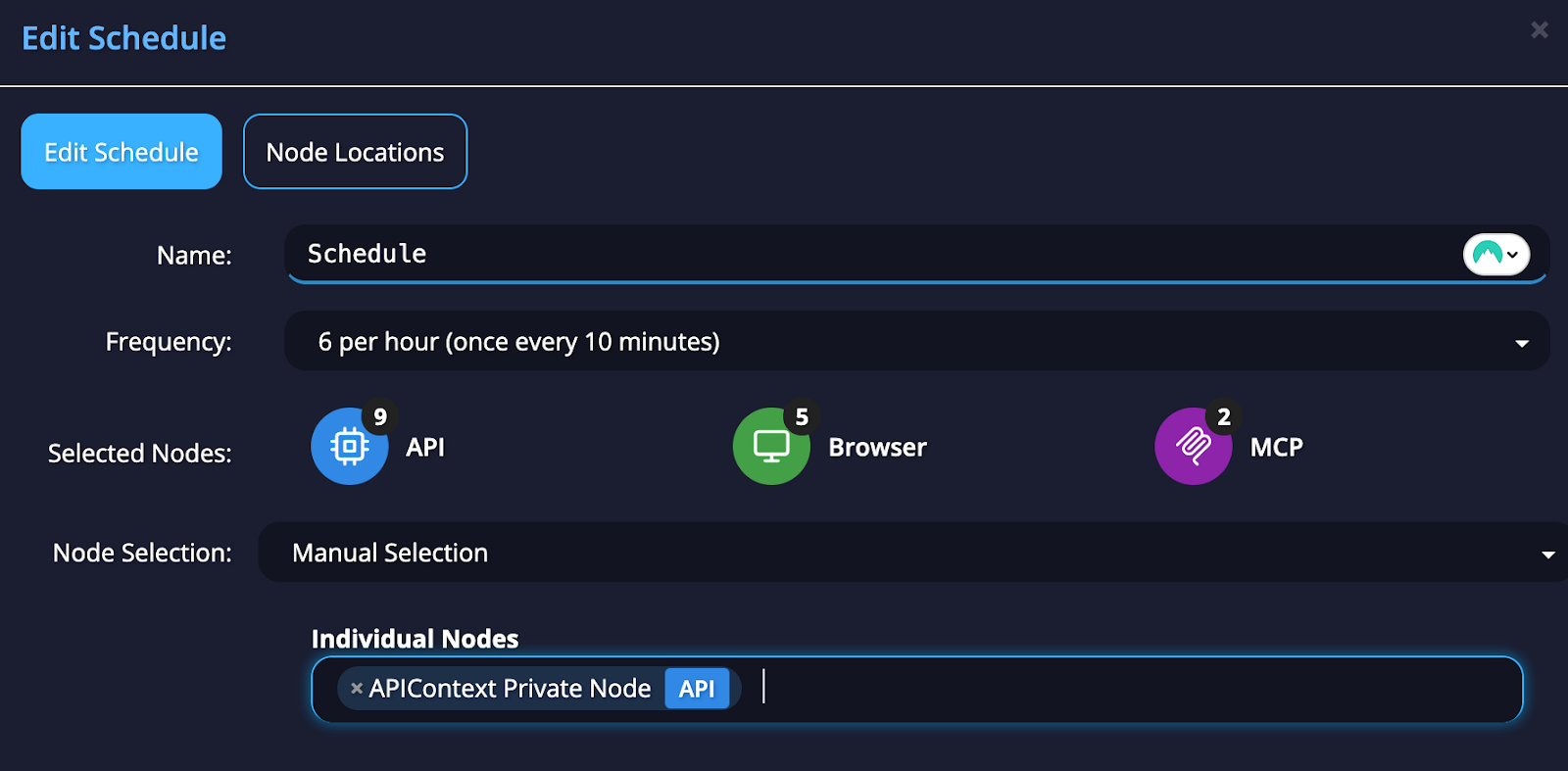
Schedule monitors on your node by selecting “Manual Selection” for the Node Selection option, and adding your node from the drop-down list.
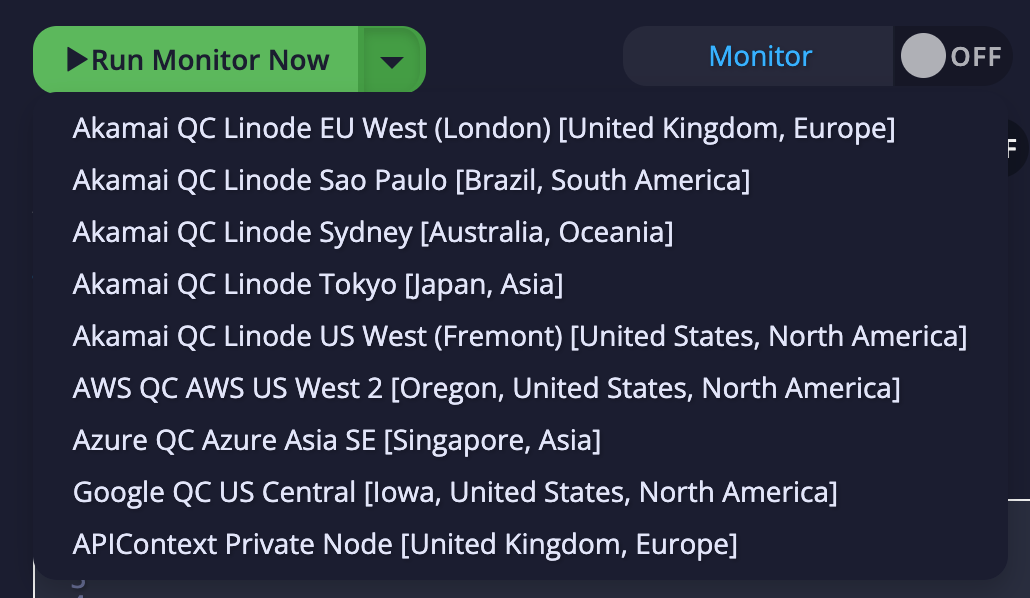
You can also manually run Monitors and Workflows on your private nodes by selecting from the dropdown menu on the right of the Run Now button.
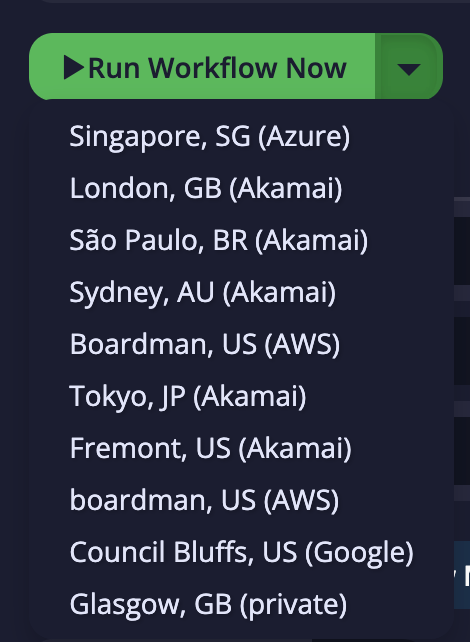
For workflows, the drop-down only shows locations rather than individual node names as the system has to pick a location with all available node types for the workflow steps.
Updated 9 months ago