
Upload a Signing Certificate
Use this guide to securely upload a signing certificate and automatically compute its Key ID.
Follow this step-by-step guide below to upload a signing certificate and compute its Key ID:
- Go to your Organization Settings -> Certificates page

- Click "Add Certificate".
- When the Certificate Details Form opens, enter a Name for your Certificate.
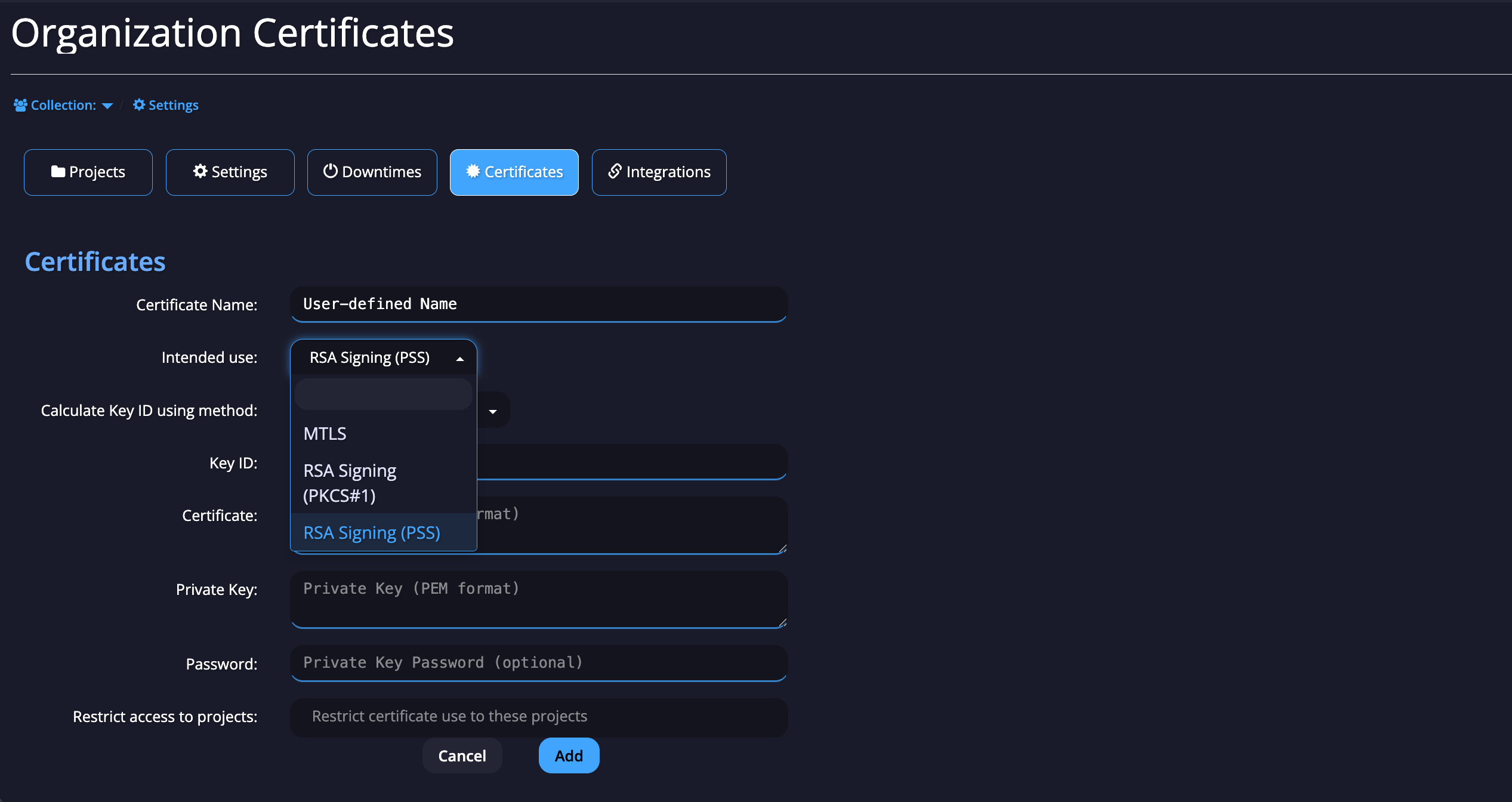
- Under "Intended Use", select one of the following:
- "RSA Signing (PSS)" - for PS256 signing
- "RSA Signing (PKCS#1)" - for RS256 signing (older, less commonly used)
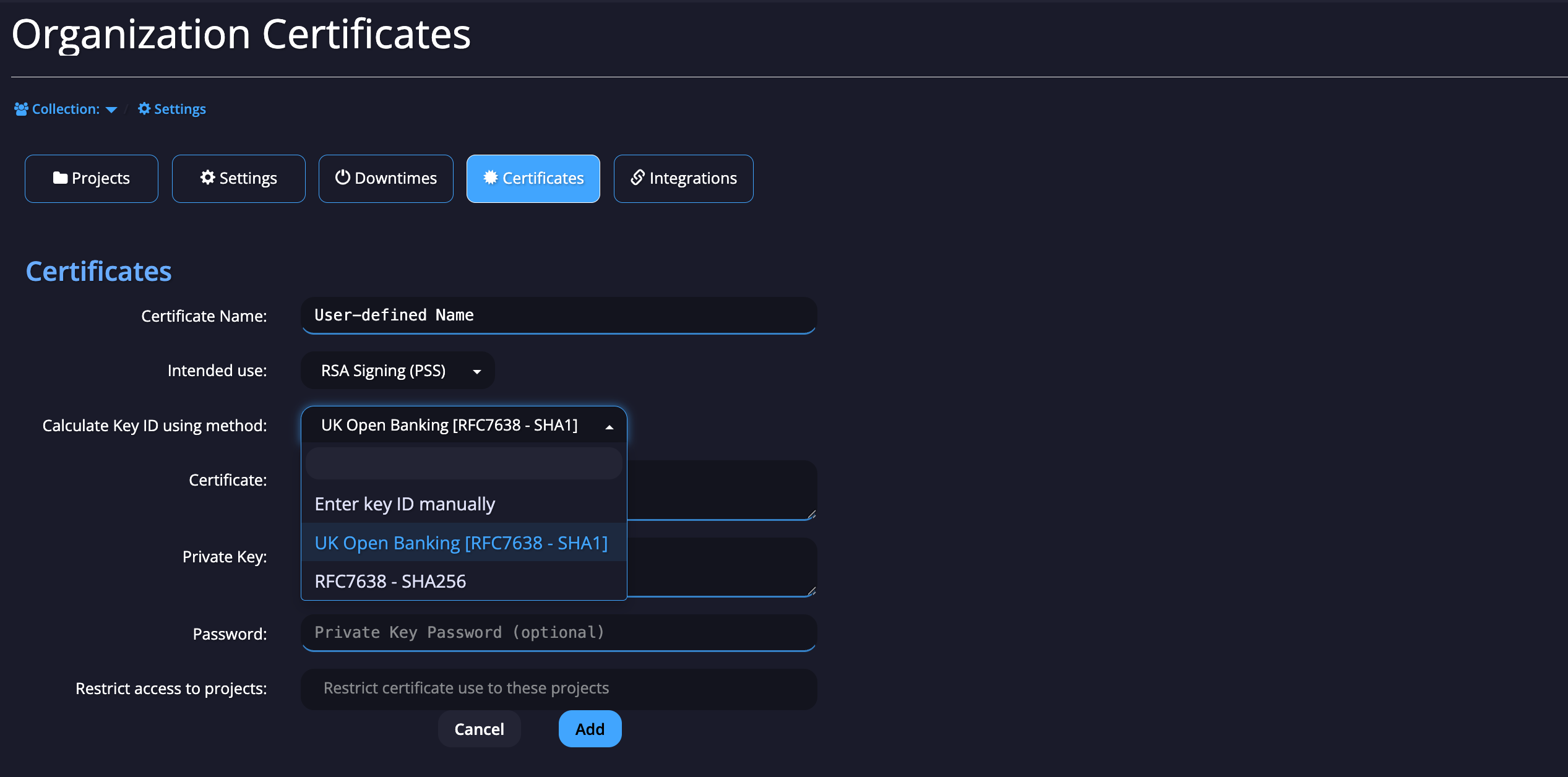
- Choose the Key ID calculation method. This determines how the certificate is identified in the Signing Helper API. Select one of the following:
- “Enter Key ID manually” - if you already have the Key ID.
- “UK Open Banking [RFC7638 - SHA1]” - for UK Open banking projects.
- “RFC7638 - SHA256” - for all other use cases.
- Paste the Certificate, Private Key, and optional Password into the respective fields.
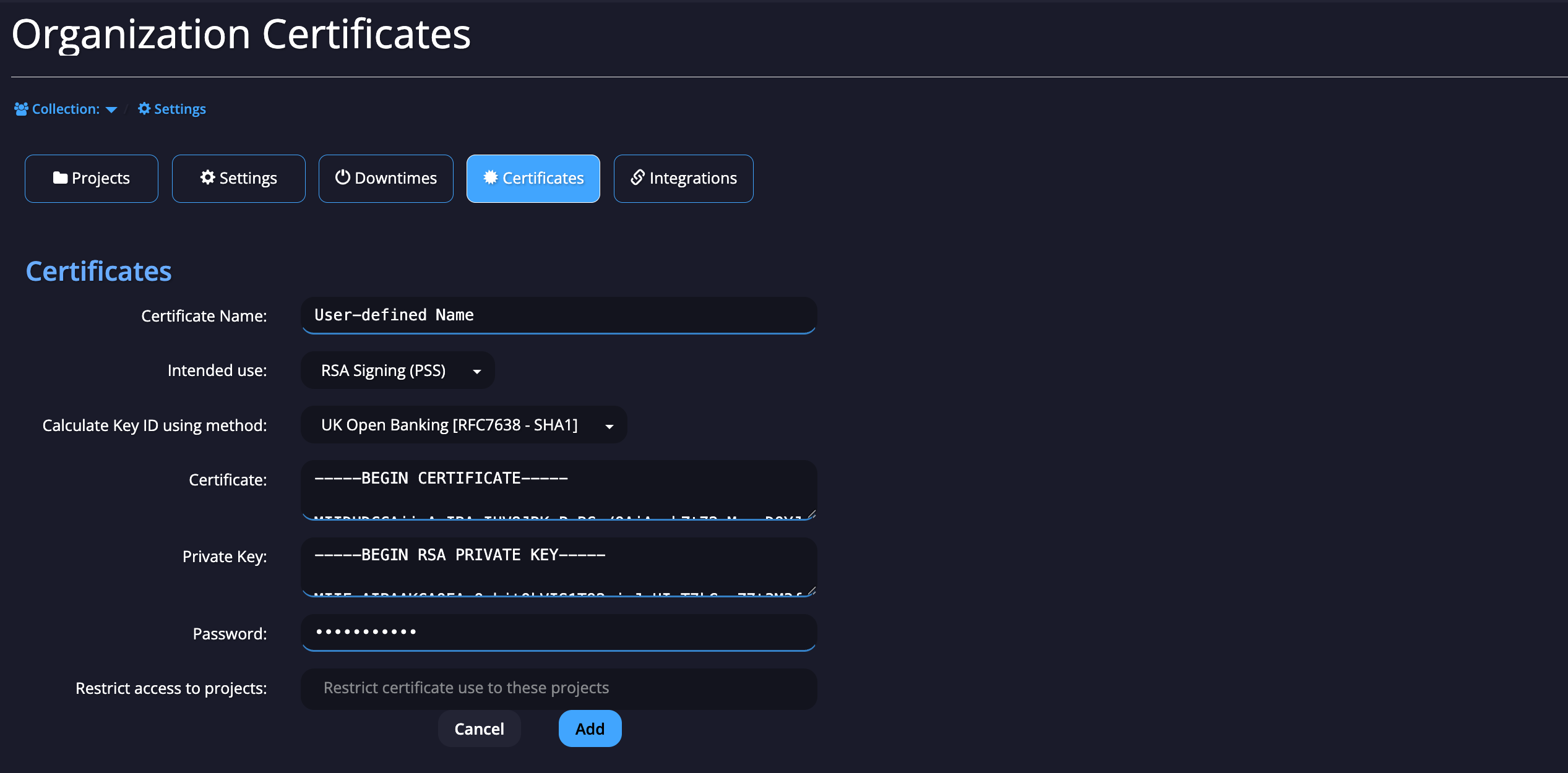
- Click "Add" to upload the Certificate.
Once uploaded, the new certificate appears in the Certificates table. You can copy its Key ID from there for use in your integration.
Updated 11 months ago
What’s Next
Once your signing certificate is uploaded, see the below guide on using your Signing Key in Workflows.