
Use your Signing Key in Workflows
Use this guide to generate the upgraded JWT Signing API call and update your existing workflows accordingly.
If you’re replacing an existing signing certificate, update your configuration to use the new Upgraded Signing API instead of the older helper API:
Old endpoint:
https://us-central1-viatests.cloudfunctions.net/jwt-kms-signer
New endpoint:https://client.apimetrics.io/api/2/jwt/encode
A one-click upgrade option is available to create the new JWT Signing API call automatically. After it’s created, you will need to manually update your workflows to use this new API call (see Step 5 below).
Follow the steps below to complete the update:
- Locate the Old Helper API In your workflows - Click Edit and you will see a "Create Updated Call" button.
- Click "Create Updated Call" - Clicking this button will automatically generate a new JWT signing API endpoint.
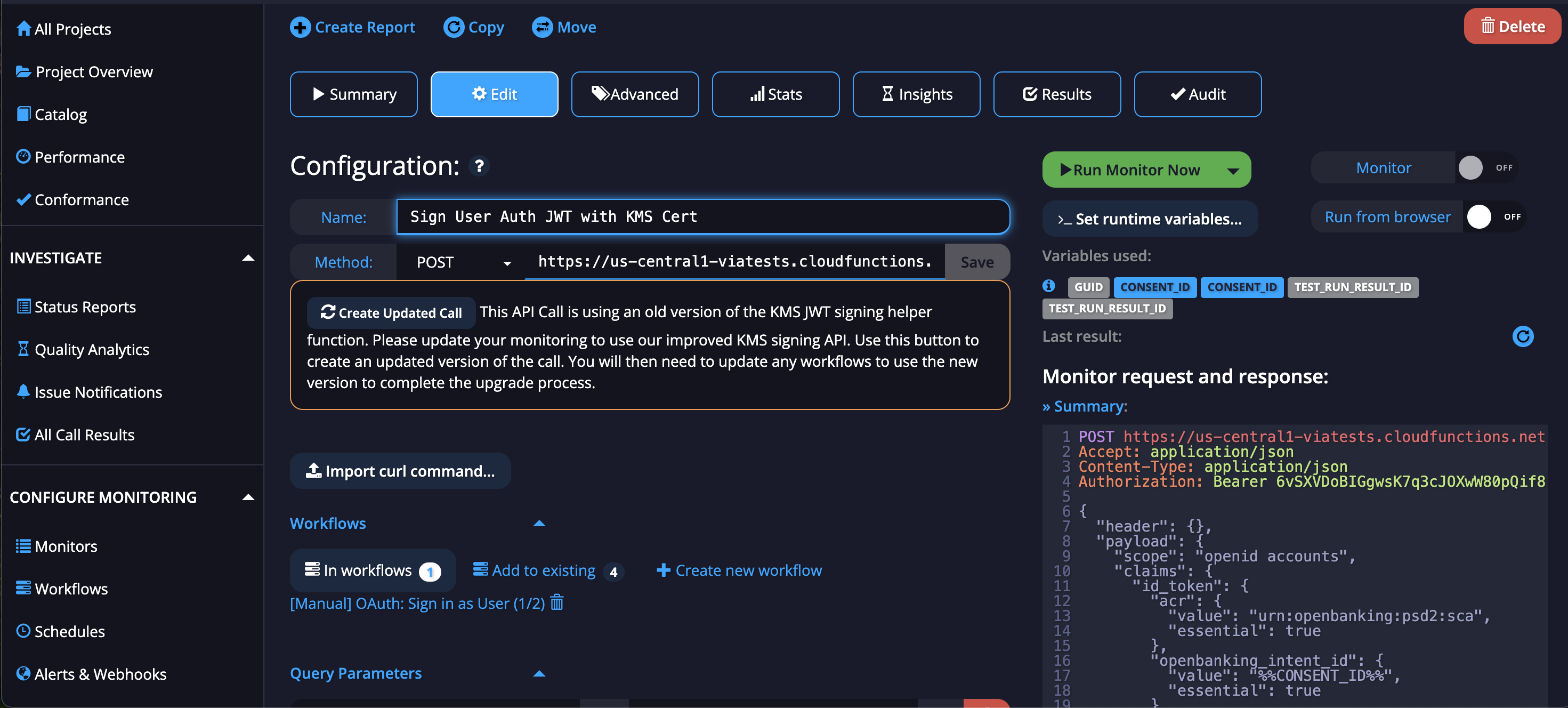
- Review the New API Call - The new JWT Signing API call will be automatically generated and appear similar to the example below.
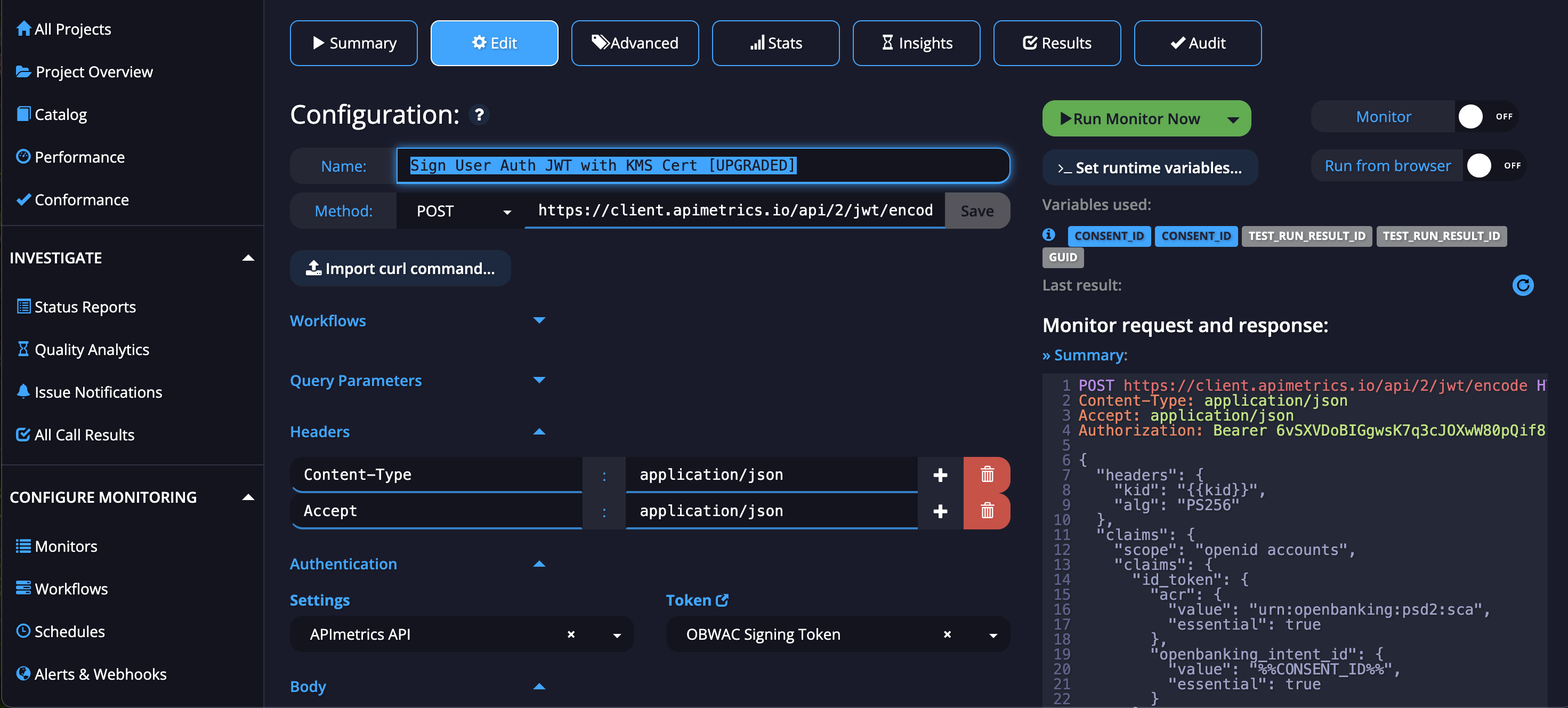
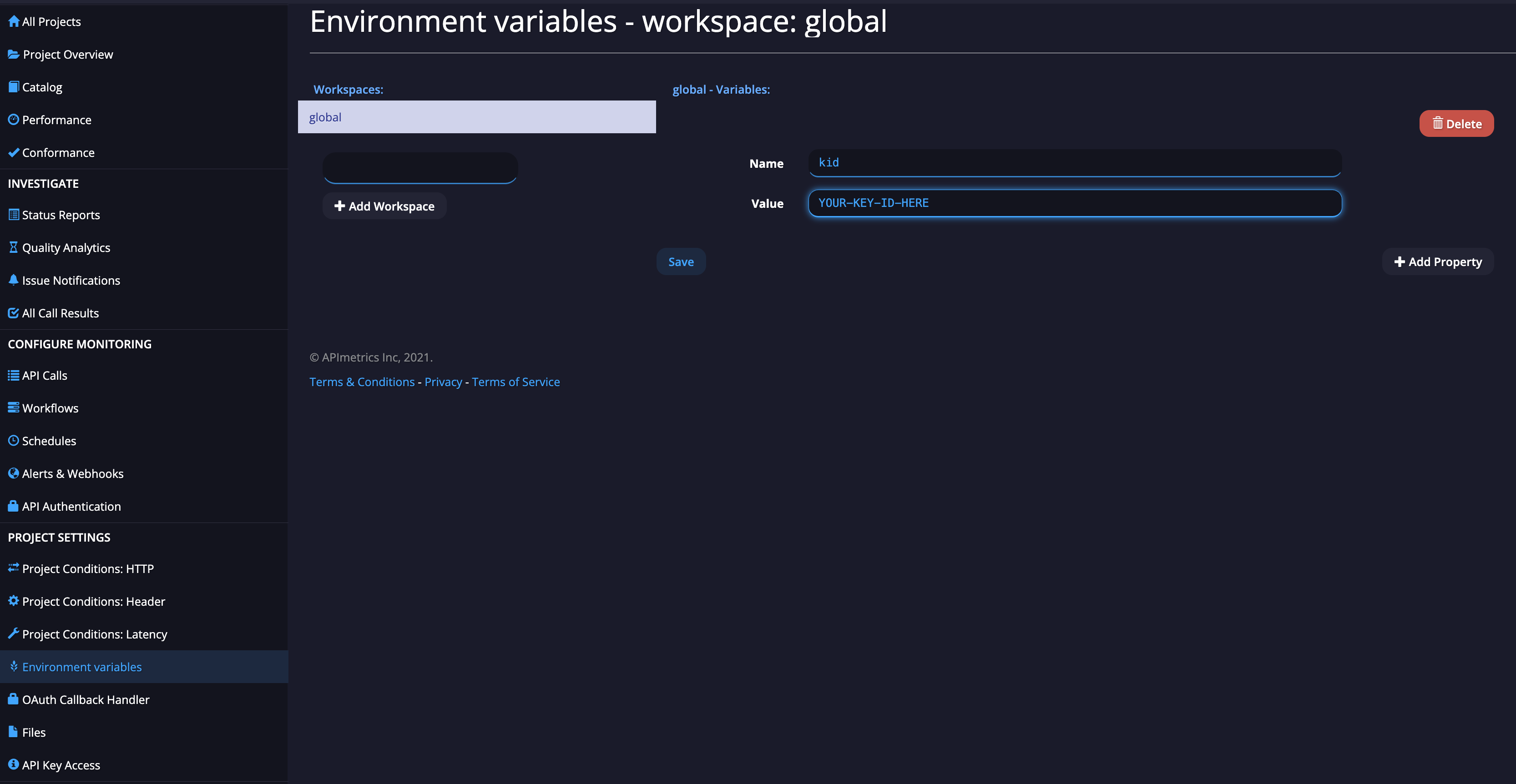
- Update the
kidParameter - Set thekidparameter to the Key ID of your new certificate. We strongly recommend storing the Key ID in an environment variable to make management easier as shown in the image below.
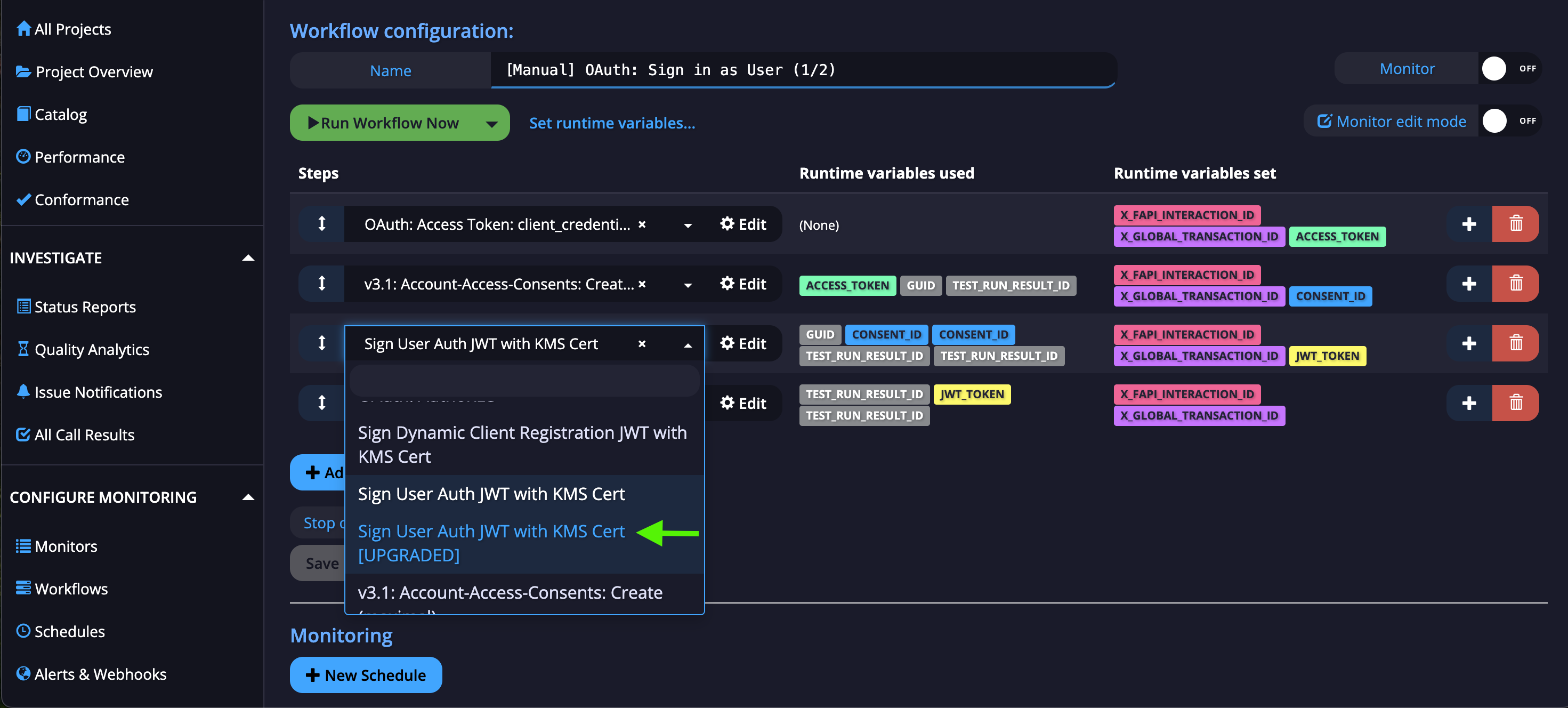
- Update All Workflows - You must replace all references to your old API call with the newly created API call in every workflow where it is used.
For more comprehensive details regarding the new JWT Signing API, please refer to the JWT Encode API reference.
Updated 7 months ago